Your staff workspace
Start every shift with a clear picture
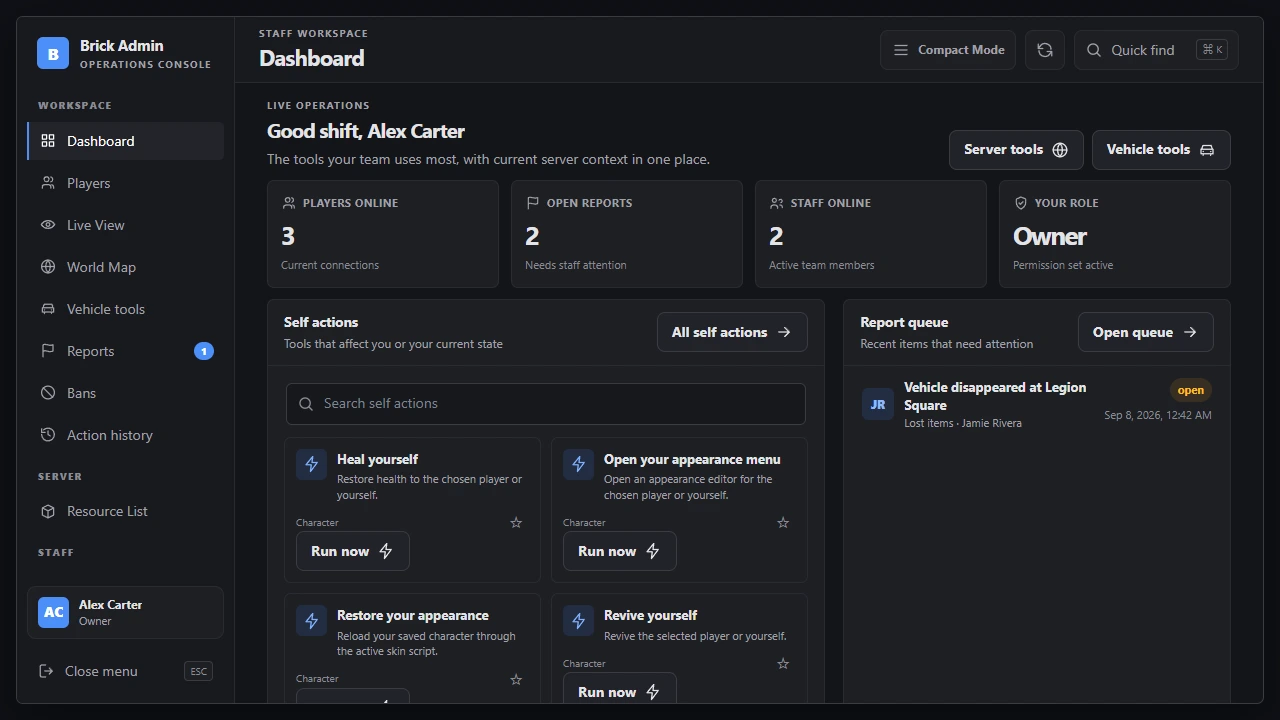
See online players, open reports, staff activity, and your own tools together. Use the standard layout or switch to compact mode.
Explore player tools, handle fictional reports, edit sample roles, and browse the World Map in the actual Admin interface.
Demo actions stay in this browser preview. They do not connect to a game server, account, database, money, or inventory. Player effects and Live View feeds are simulated. Reset restores the sample staff and reports.
Explore the actual Admin interface, shown here with fictional players and reports.
See online players, open reports, staff activity, and your own tools together. Use the standard layout or switch to compact mode.
Switch to a smaller panel with icon navigation whenever you need more room for gameplay. Return to the full workspace with one click. The same tools remain available in both layouts.
Search online players, review their details, and open moderation, movement, inventory, money, character, and vehicle tools according to your permissions.
Claim or assign tickets, reply to players, leave private staff notes, and resolve or reopen reports. Players contact your team with /report.
Watch player game feeds side by side, expand a feed, and open player actions directly from Live View. Access follows staff permissions. Shown here with static sample gameplay images.
Create roles, choose individual permissions, and assign staff access in game. Keep player tools and staff management access under your control.
Find online players across Los Santos and Blaine County, inspect their locations, and open their player tools from the map.
One workspace for the people who keep your server running.
Warn, kick, ban, spectate, teleport, revive, heal, and manage supported player accounts and inventories.
Authorized staff can watch player game feeds, with configurable feed limits and optional relay networking.
Spawn and repair vehicles, use supported garage tools, and change weather, time, and blackout settings.
Inspect known server resources and start, stop, or restart permitted resources from the menu.
Review staff actions, add player notes, and communicate with your team in one workspace.
Use available effects and temporary ped models, with access controlled by staff permissions.
Find a player, handle a report, or set up your staff team without moving between separate menus. Brick Admin combines moderation, movement, character and vehicle tools, reports, action history, staff chat, Live View, and resource controls. Create reusable roles or assign individual permissions directly in game.
Find a player, handle a report, or set up your staff team without moving between separate menus. Brick Admin combines moderation, movement, character and vehicle tools, reports, action history, staff chat, Live View, and resource controls. Create reusable roles or assign individual permissions directly in game.
Review the startup order, required providers, installation, and customer-editable settings before installation.
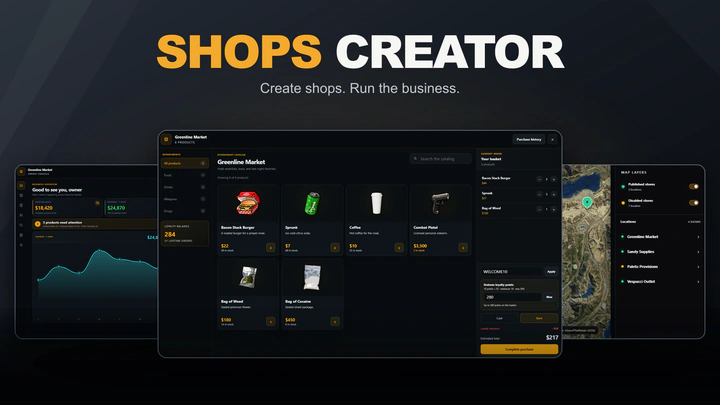
Create and manage shops owned by the server, individual players, jobs, or gangs, with stock, staff, promotions, loyalty, and sales reporting.
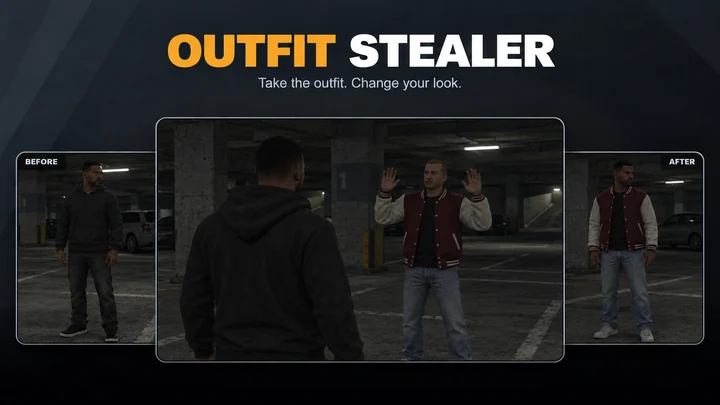
Temporarily copy clothing and props from hands-up or downed players, with configurable theft duration, victim appearance, and outfit restoration.